
How MediaClaw works
MediaClaw does two jobs. It watches release feeds for the new things you asked for and downloads them as they come out. And it shows you what your Plex library is missing, so you can grab older things in a click or two. Shows, movies and music are named, filed and added to Plex for you; podcasts play right in MediaClaw.
Here’s how that plays out for each kind of media.
Shows
1. Find the shows you want
There are three ways to pick a show to track, each a tab on the Shows page:
- Calendar: new shows premiering this year. Track one straight from its poster.
- Library: every show already in your Plex library. Track any of them.
- Find: search for any show by name.
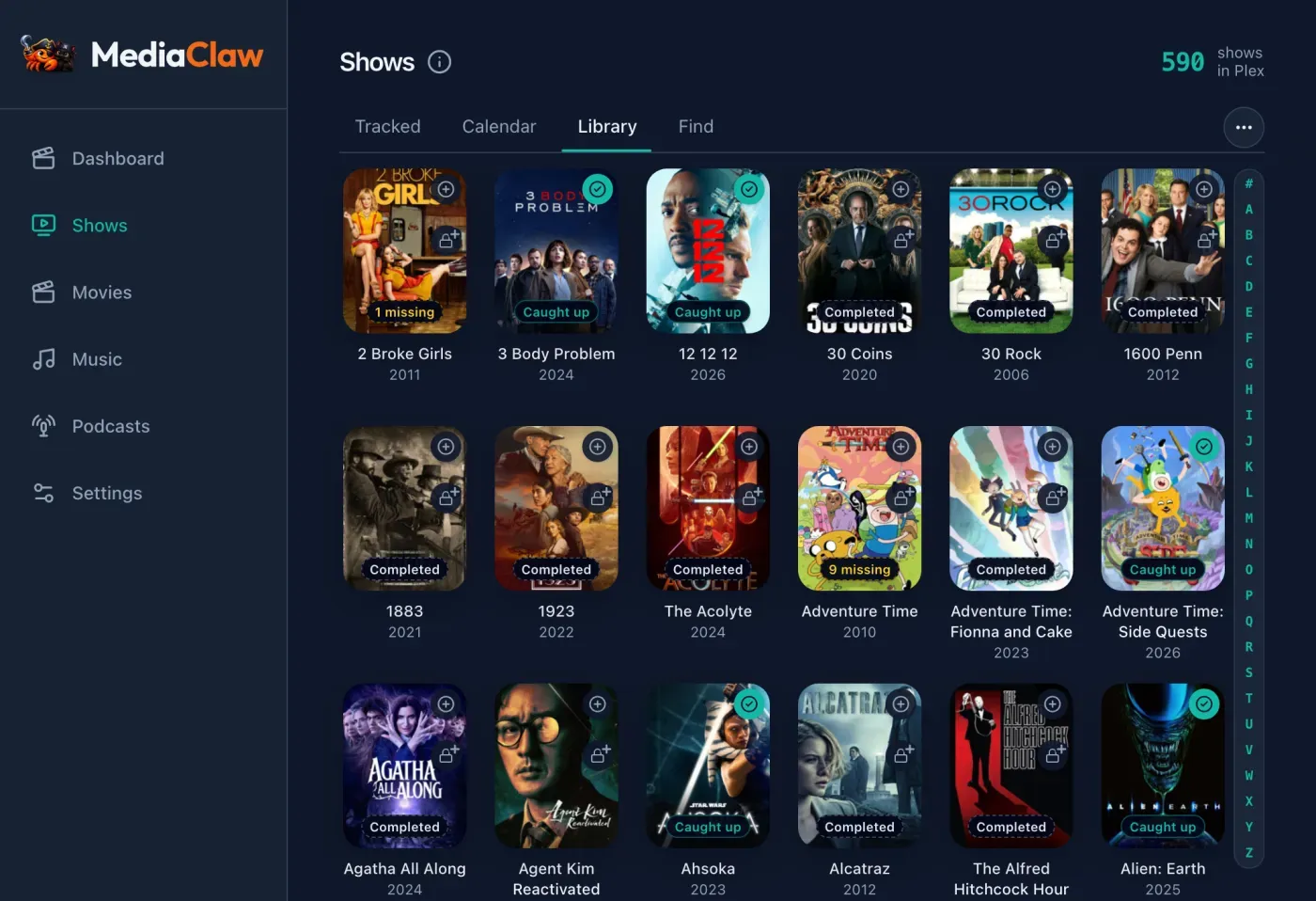
The Library tab: every show in Plex, and what each one is missing.
2. Open the show
A show’s page lays out every season and episode: what has aired, what’s in Plex, and what’s missing.
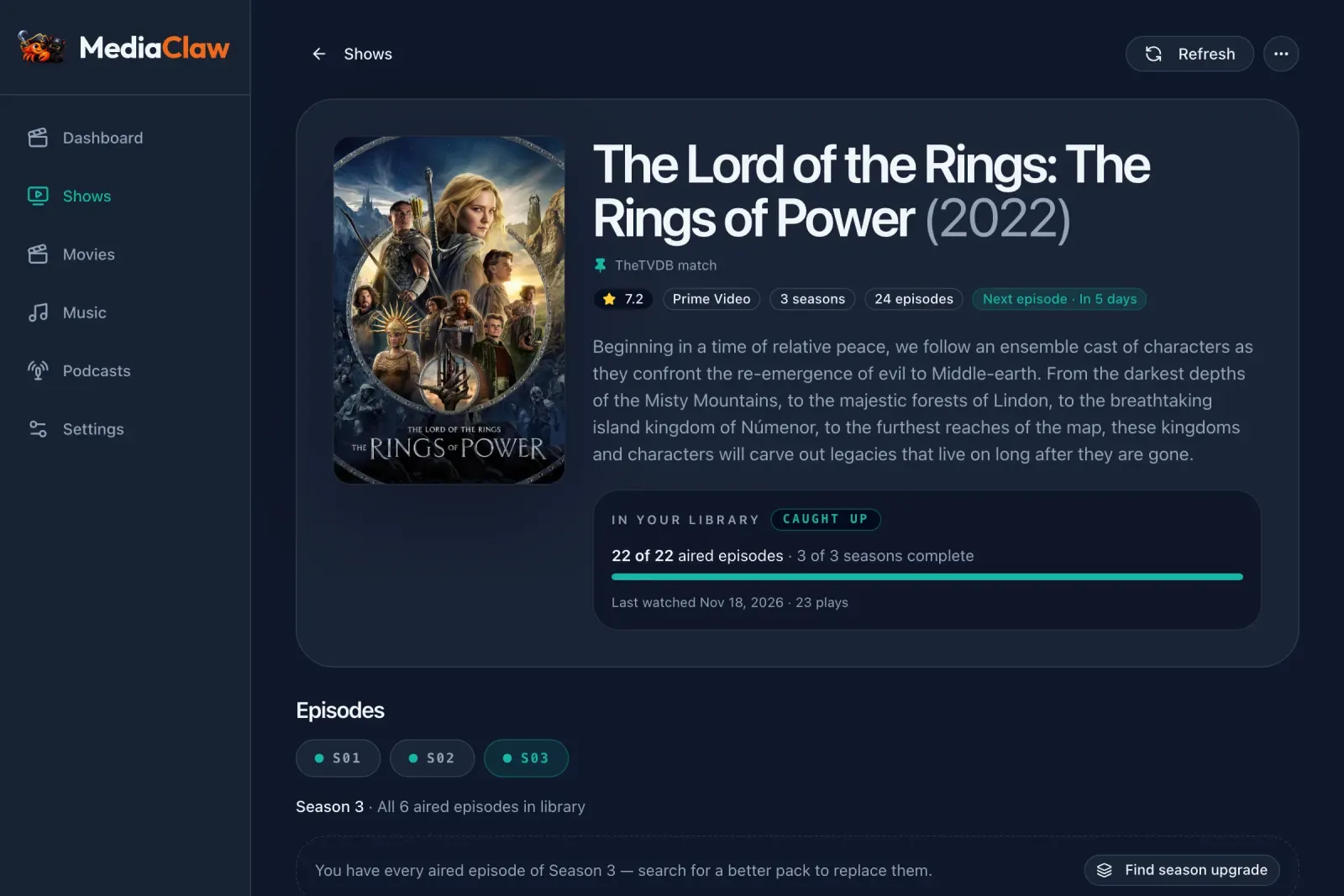
A show’s page, season by season.
3. Fill in what’s missing
- A whole season: pick the season, choose Find season, then Search. Pick a season pack and Grab it, or Trim it to keep only the episodes you need.
- One episode: search from the episode itself and grab a release.
- What aired recently: the show’s … menu has Rescan feed history, which checks the last 180 days of feeds for the show and lets you choose what to grab.
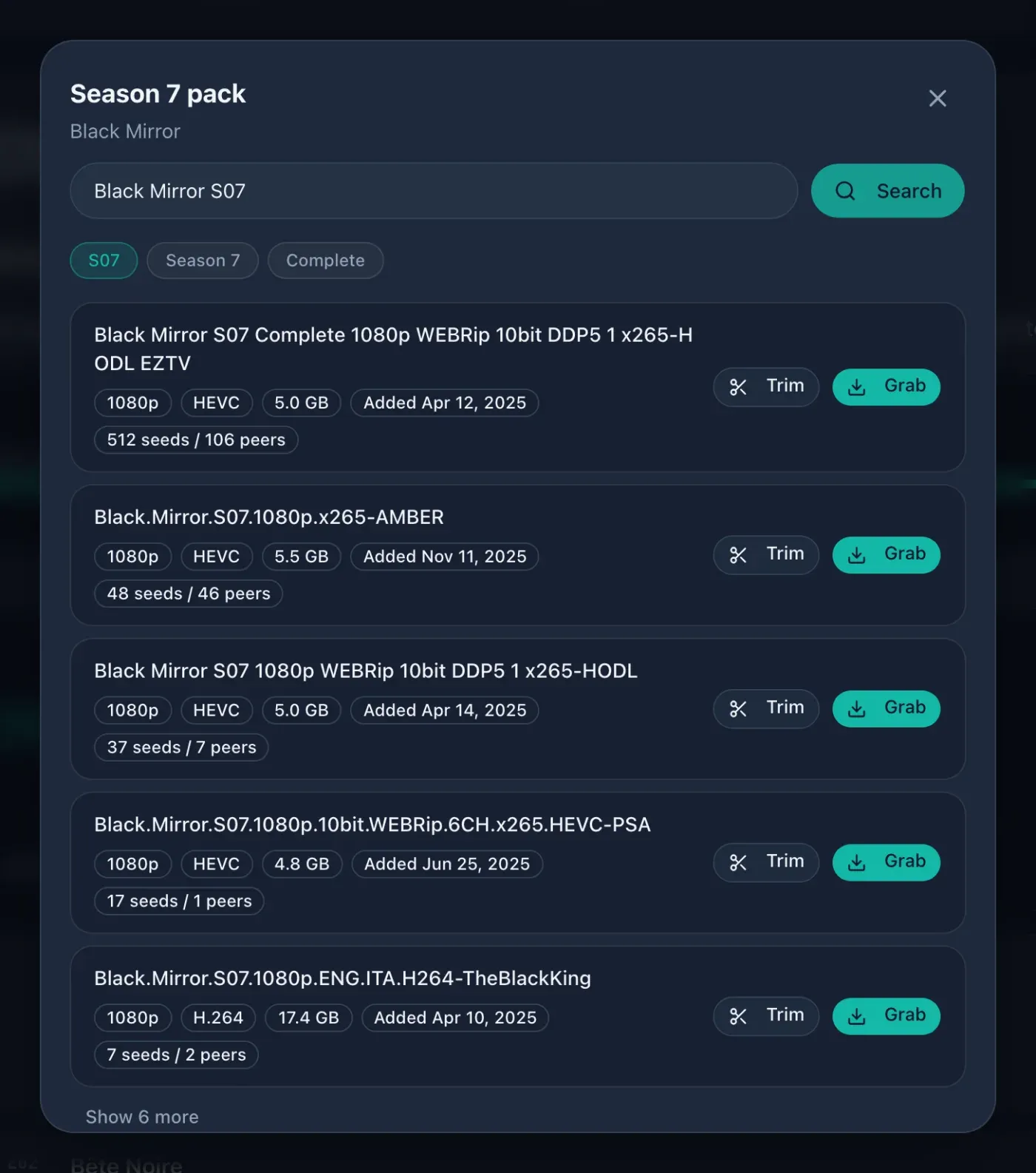
Searching for a season pack. Grab takes it all; Trim lets you choose the episodes.
A season pack leaves out the episodes Plex already has, and automatic downloads skip anything you already have.
4. New episodes come in on their own
From then on, the release feeds handle it. When a new episode of a tracked show comes out, MediaClaw downloads it, files it and tells Plex. The dashboard’s Upcoming card shows what’s due in the next few days.
Movies
Movies come in two ways on their own, and you can grab any other movie yourself.
Release years (optional)
In the Movies page’s Preferences, turn on Download every new movie from chosen years and pick the years. Every new movie from those years then downloads as it comes out, in the quality you set there. If you’d rather choose, turn off Release-year movies in the dashboard’s Auto downloads tile: they then wait on the Paused matches card for you to pick.
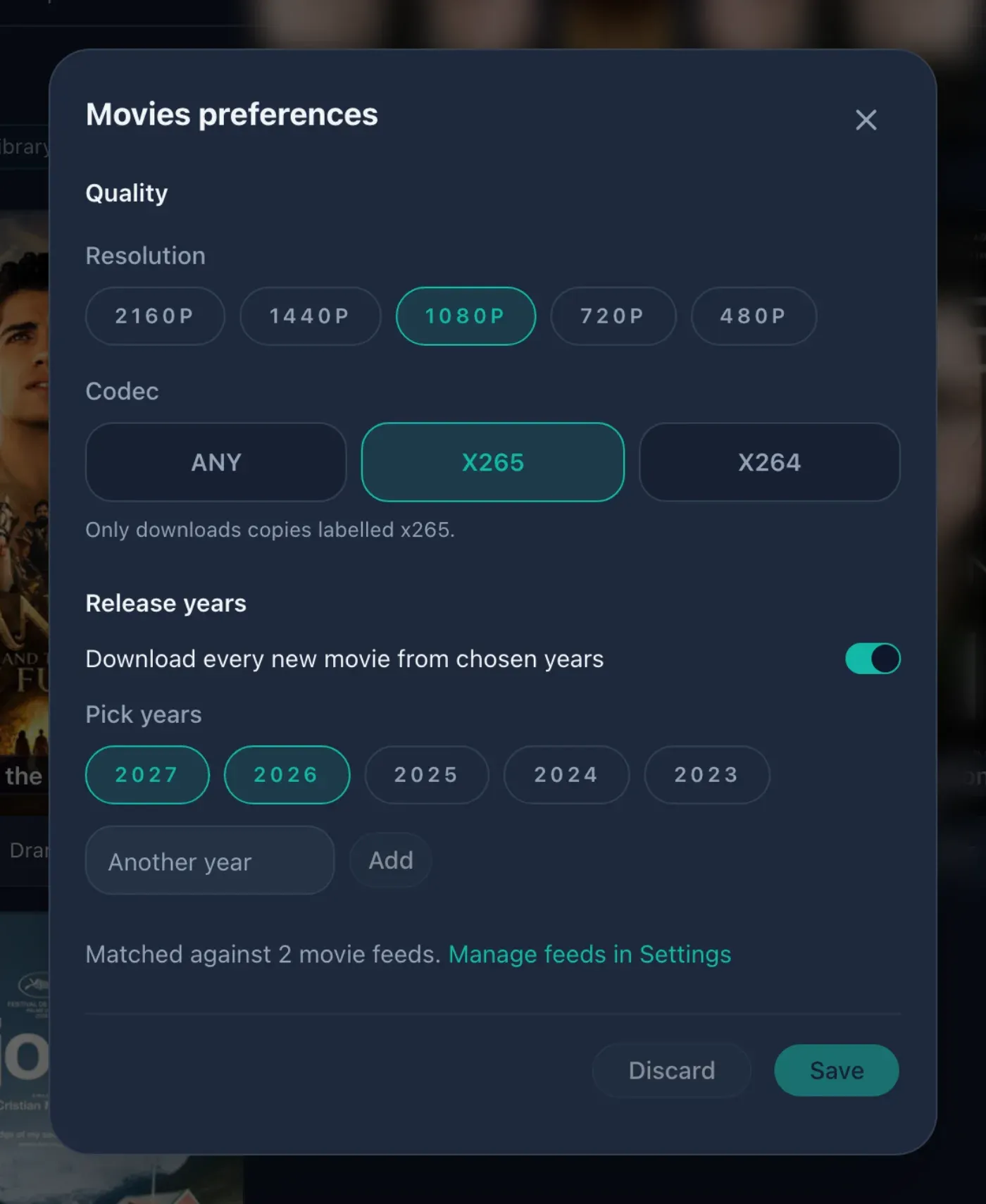
Movies Preferences: the quality to download, and the release years. After a change, MediaClaw offers to check the last 180 days of feeds for what the new settings would get.
Your wishlist
The wishlist is the precise way. Star a movie on the Calendar or Top Movies tab. Until it’s out, it waits on your wishlist with its digital release date. From release day, MediaClaw watches the feeds and searches for it every few hours, and downloads a release in your quality. Star a movie that’s already out and MediaClaw checks the last 180 days of feeds for it right away.
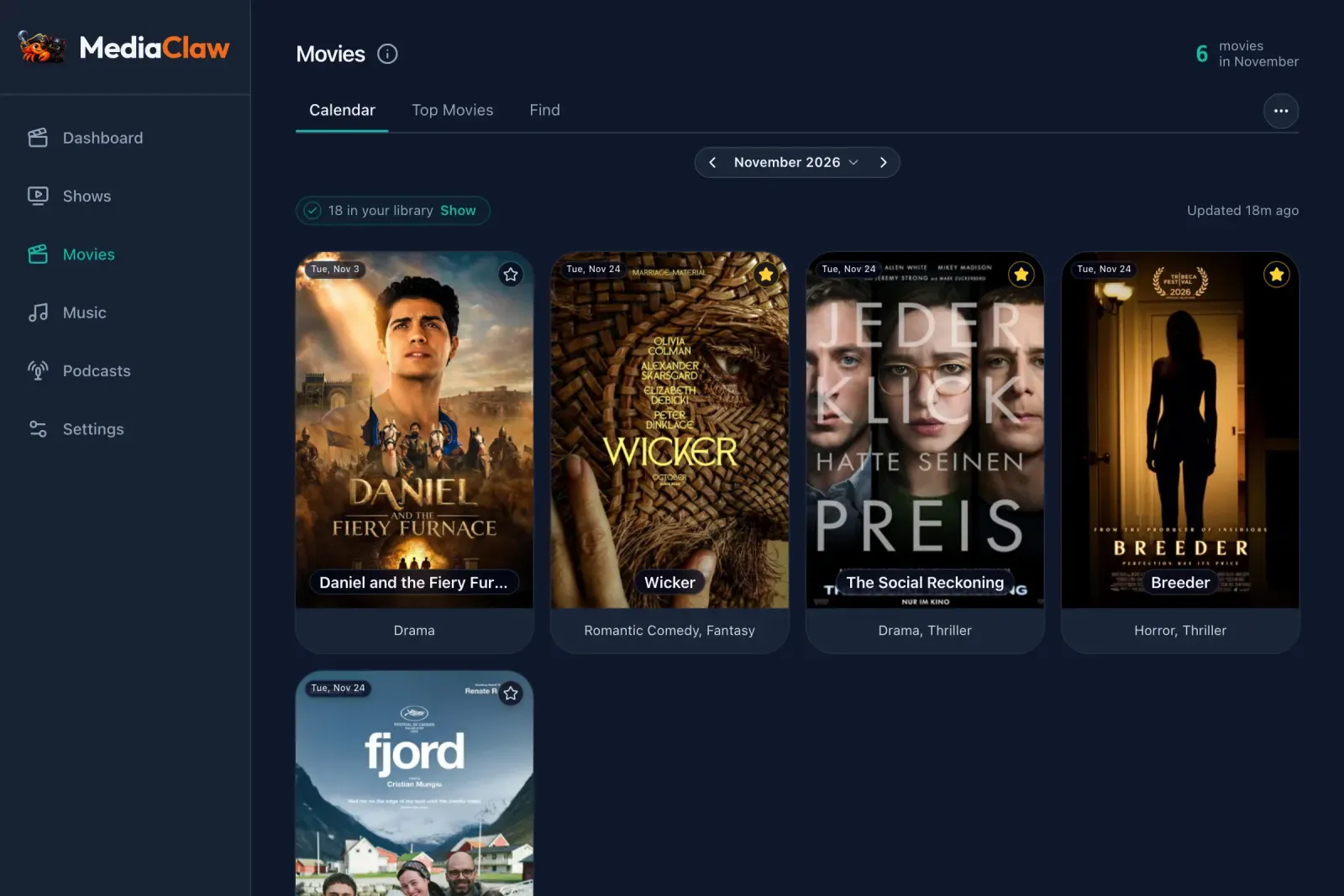
Star a movie on the Calendar to add it to your wishlist.
If a wished movie doesn’t turn up soon after its release, it moves to the dashboard’s Overdue card, where MediaClaw keeps searching for it, by default once a day for 60 days. The card’s settings change how often, for how long, and whether it may fall back to other qualities. If you no longer want it, the ✕ on its poster stops the search and takes it off your wish list.
Any other movie
For any movie that’s already out, search for it in Find and Grab a release. Each result is marked In your library when Plex has the movie, and says whether that release would be an upgrade.
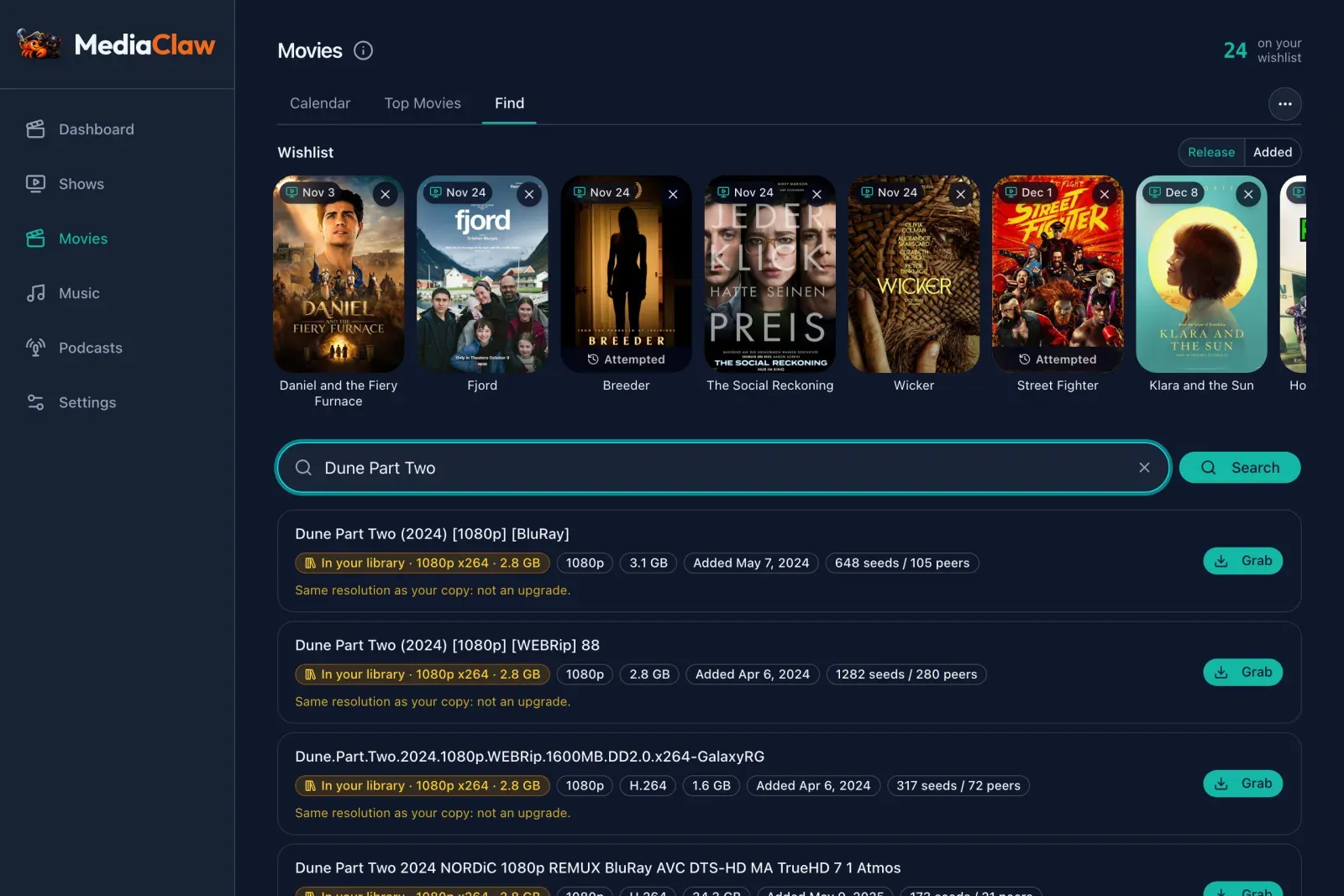
Searching in Find. Your wishlist sits above the search.
Top Movies is a good place to browse: the most popular movies of a year, or of all time. Ones Plex already has fold away until you tap Show.
Music
Music works like shows, without the automatic part: you choose every album.
- Follow an artist from Library (your Plex artists) or Find (any artist).
- Their page lists every official album and which ones you have, for example 4 of 18 albums.
- Grab one album, or the whole discography in one go.
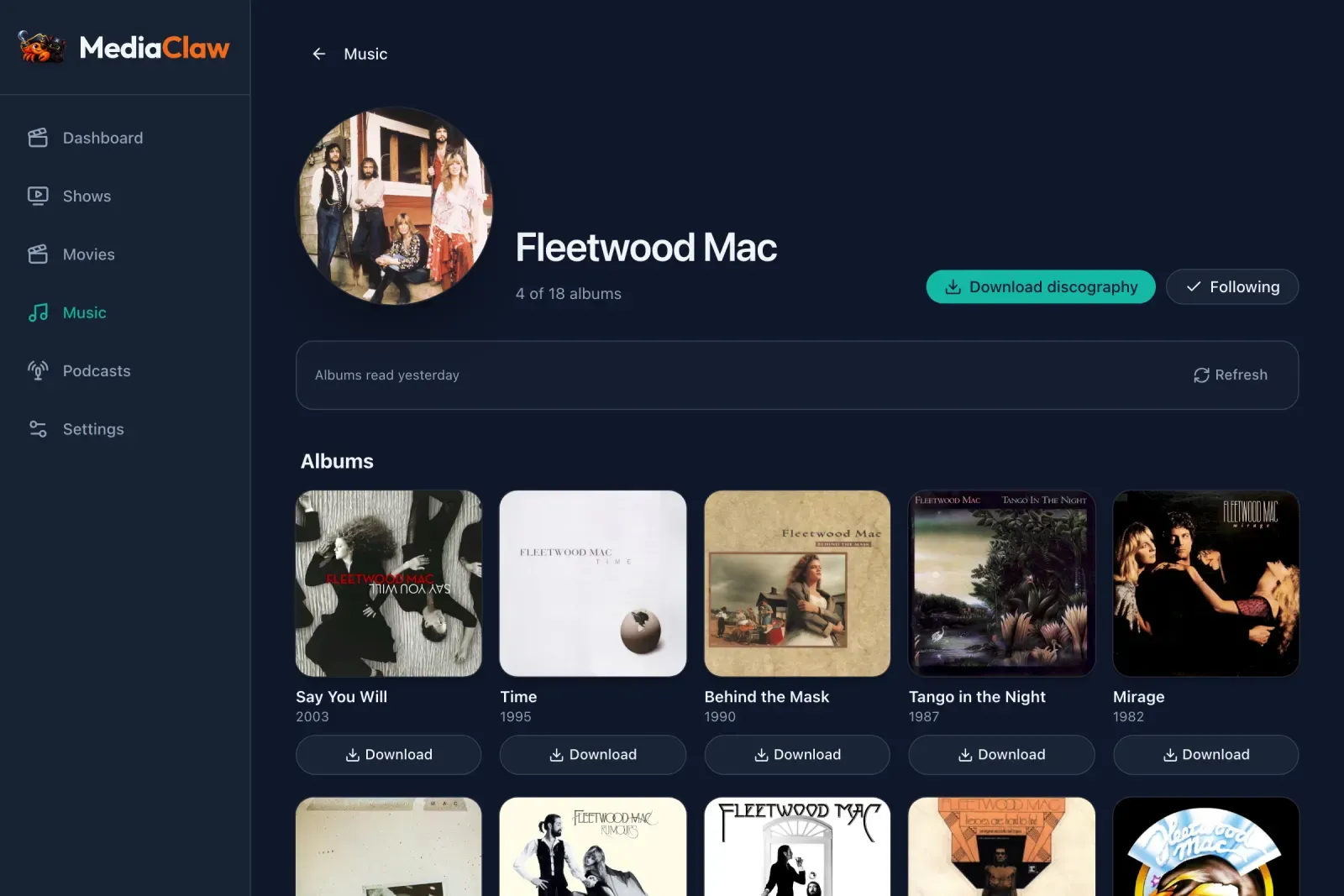
An artist’s page: download one album, or all of them.
Podcasts
Follow a podcast and its newest episodes save to your Mac on their own, straight from the podcast’s feed. Listen in MediaClaw on your Mac, phone or iPad. See Music and podcasts.
The dashboard
The dashboard is where you see all of it at once: what’s downloading, what’s coming up, anything overdue, and everything MediaClaw has downloaded. You can pause Auto downloads there whenever you need to.