
Auto downloads
Auto downloads is what makes MediaClaw download new episodes and movies on its own as feeds find them.
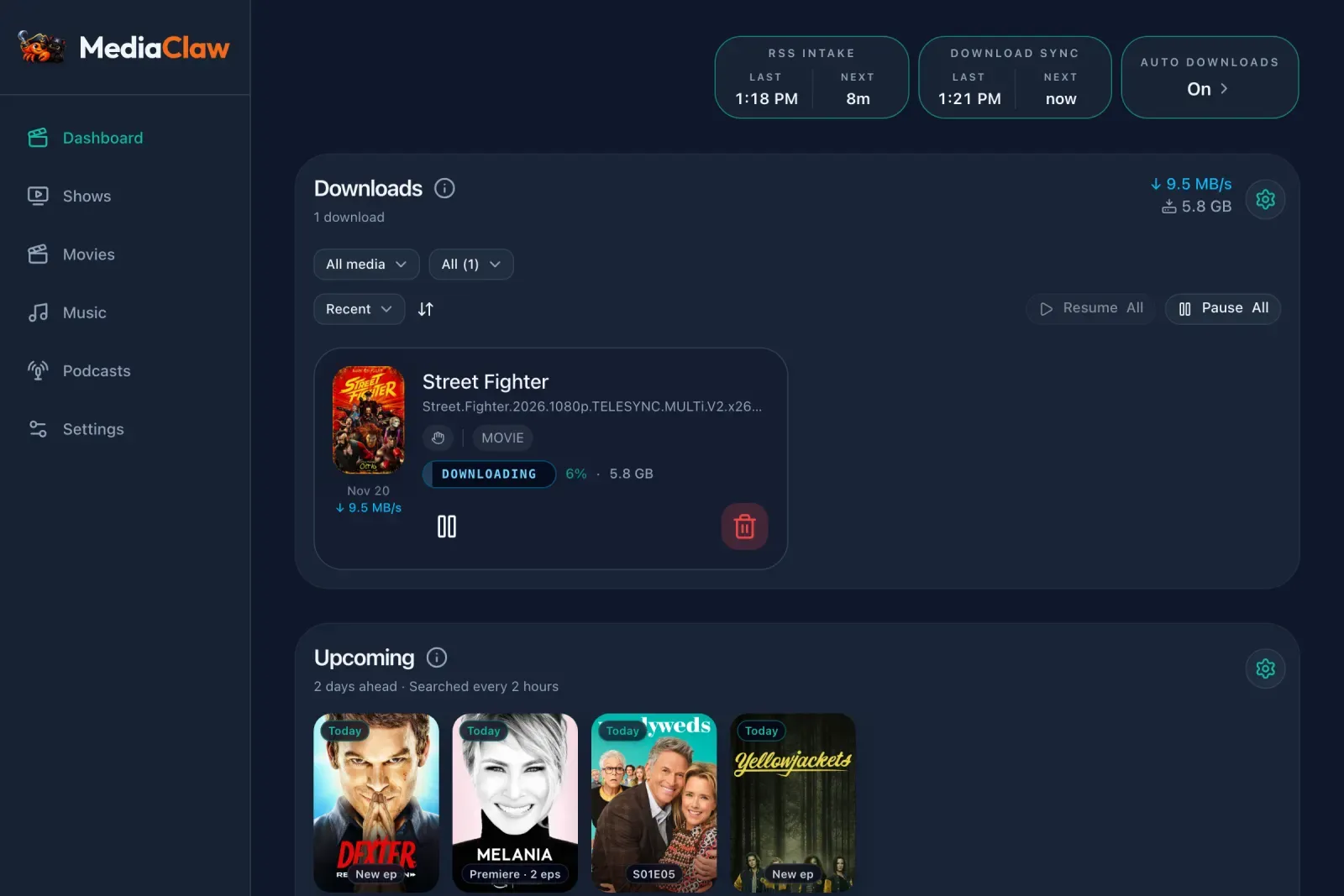
The Auto downloads tile is at the top right of the dashboard. Open it for the switches.
Pausing
Pause Auto downloads when you want MediaClaw to stop downloading for a while, for example while you travel or need the bandwidth. Open the Auto downloads tile on the dashboard: Download automatically pauses new episodes and movies. Under it, three switches pause one kind at a time:
- Shows: new episodes of the shows you track.
- Wishlist movies: the movies you starred.
- Release-year movies: new movies from the release years you pick in the Movies page’s Preferences (greyed out until you pick some).
Podcasts keep saving either way.
While paused, what’s wanted shows as Paused on the dashboard, and the paused time doesn’t count toward Overdue. Your own downloads always go through: the download button on a Paused poster gets that one right away.
Picking release-year movies by hand
Release years cast a wide net, and plenty of what they catch you won’t want. To choose instead, leave Shows and Wishlist movies on and turn Release-year movies off. Your shows and starred movies keep downloading as usual, and every new movie from your release years waits on the Paused matches card. Download the ones you want, ✕ the rest, and let the others leave the card when their time is up. The tile still says On, since nothing you asked for is paused.
Star a movie that’s waiting there and it downloads straight away as a wishlist movie, provided Wishlist movies is on.
Paused matches
While Auto downloads is paused, or one of its switches is off, the dashboard’s Paused matches card shows what the feeds found that the Upcoming and Overdue cards don’t, mostly movies matched by their release year. Turning the switch back on sends it all. Each poster’s download button gets that one right away, and anything you already have, or that’s already on its way, leaves the card by itself. Don’t want one of them? Tap the ✕ on its poster and it won’t be downloaded, now or when you resume.
Matches wait 14 days by default (change it in the card’s settings). Older matches leave the card and aren’t downloaded when you resume; set it longer and they come back, up to 30 days. Movies on the card get their proper title and poster, from TMDB if you’ve added a key, otherwise from TheTVDB.
Deciding on a paused match
Tap a poster to see what would download before you choose:
- The release it would get, in large type: its quality, codec and source (WEB-DL, Blu-ray and so on) and the group that made it. A copy filmed in a cinema is flagged, since its picture and sound are usually poor.
- What it is: a movie’s summary, genres, running time and rating, or a show’s episodes with their names and air dates.
- The other releases found, and how much free space your media drive has.
From there, Download gets it, Skip means don’t download it, and Find other releases (a movie) or Open show page (a show) lets you pick a different release yourself.
If two different films share the name and year, MediaClaw leaves the summary out rather than show the wrong one.
Don’t download something
The posters on the Upcoming, Overdue and Paused matches cards have a ✕, and the feed rescan on the Shows and Movies pages has Don’t download for the rows you tick. Use them when you don’t want that episode or movie after all:
- Nothing automatic downloads it after that: not the feeds, not the background search for overdue items, and not a resume of Auto downloads. The rescan stops offering it too.
- From Upcoming or Overdue, a movie also leaves your wish list. A show stays tracked; only that episode is skipped.
- On Upcoming, only posters that are already out have a ✕.
The poster goes at once, and the message that appears has an Undo for a few seconds.
The Don’t download list
Everything you’ve said not to download is listed in the Auto downloads tile’s sheet, under Don’t download: shows with their episodes, then movies, each with where you said it and when, and when the feeds last turned it up and it was skipped again. Allow again takes one off the list (with an Undo), and puts back what the ✕ did: an overdue episode is searched for again, and a movie from Upcoming or Overdue goes back on your wish list. Getting it yourself, starring the movie or tracking the show again also takes it off the list.
Select lets you pick several at once, or a whole show, for one Allow again or Purge. Purge takes them off the list for good. They still never download. Both have an Undo for a few seconds.
The list tidies itself. A title leaves it after 60 days without turning up again, and still never downloads. Choose 30, 60 or 90 days, or Keep all, under Keep on the list for in the same sheet. Saying ✕ again to something that left the list puts it back at the top.
Not to be confused with Ignore missing episodes on a show’s page, which only stops counting episodes as missing; they can still download.